# Payments & Receipts
# How to issue a receipt with FlowAccount
You can issue a receipt from Billing/Invoice (or the document header you set according to the type of business, such as a delivery note/invoice/tax invoice) that was previously issued in the FlowAccount accounting system immediately, without having to create documents and reprint information. Just follow this step
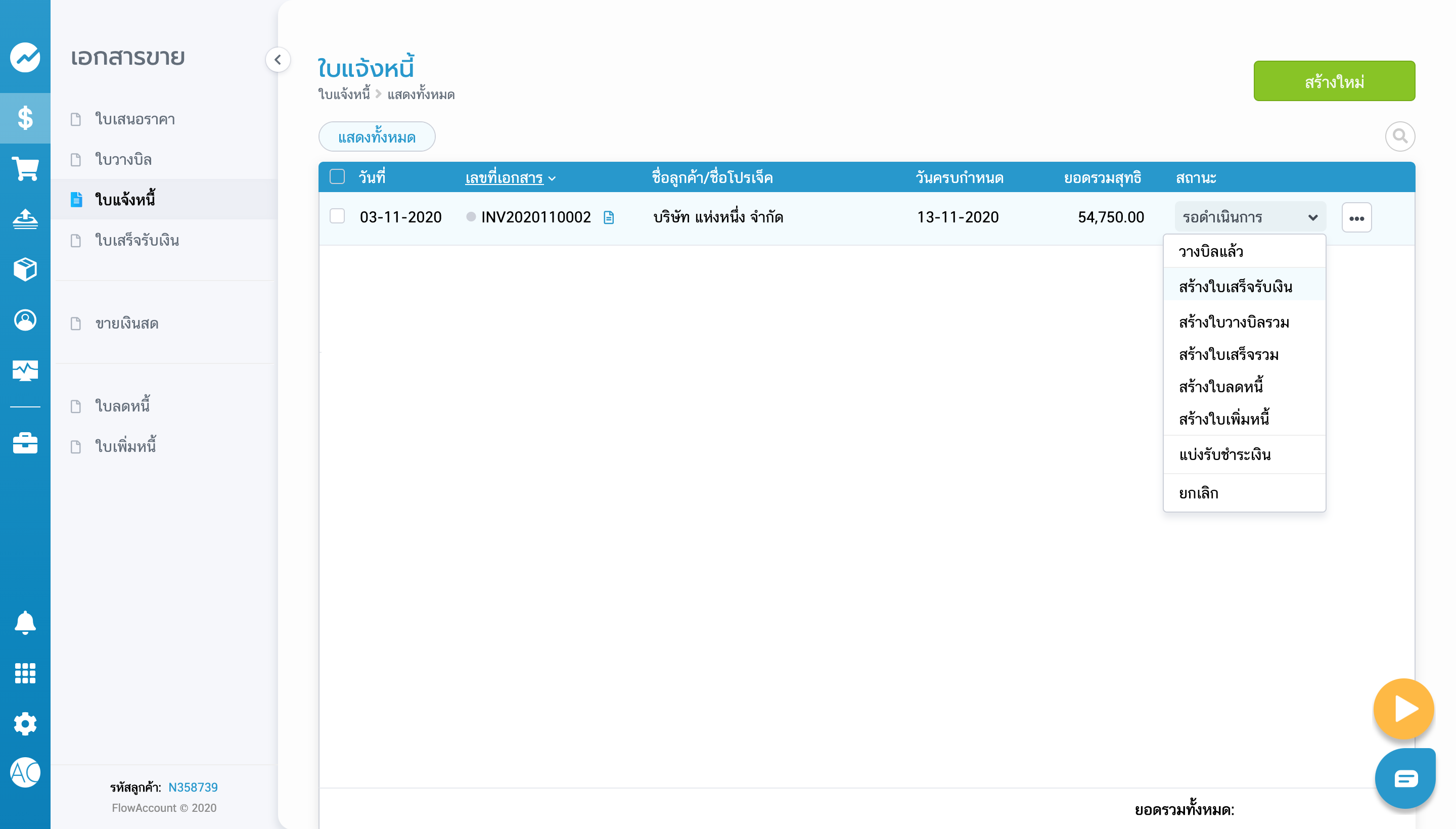
1.1.a Go to the bill/invoice list. who have already received the money Click to select the status of that document. You can create both original and copy receipt documents. that can be taken to customers when they receive money immediately
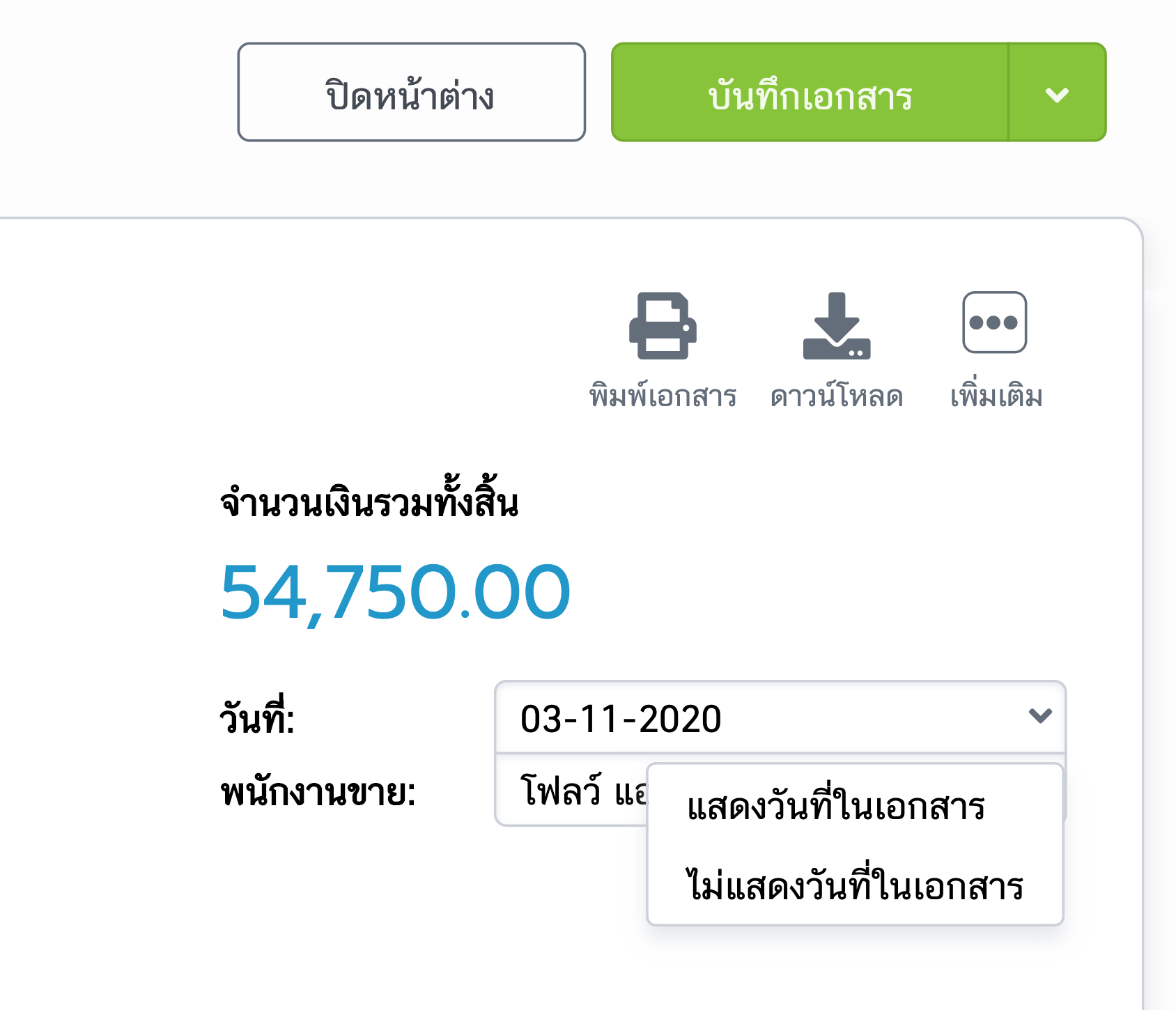
2.2.a You can choose “to show date” or “not show date”. on the receipt After checking that the information is correct, press “Save Document”
3.2.a Save payment by going to the “button. Add receipt of payment ”. Then a window will pop up as shown in the picture. Enter details of receiving payments from customers
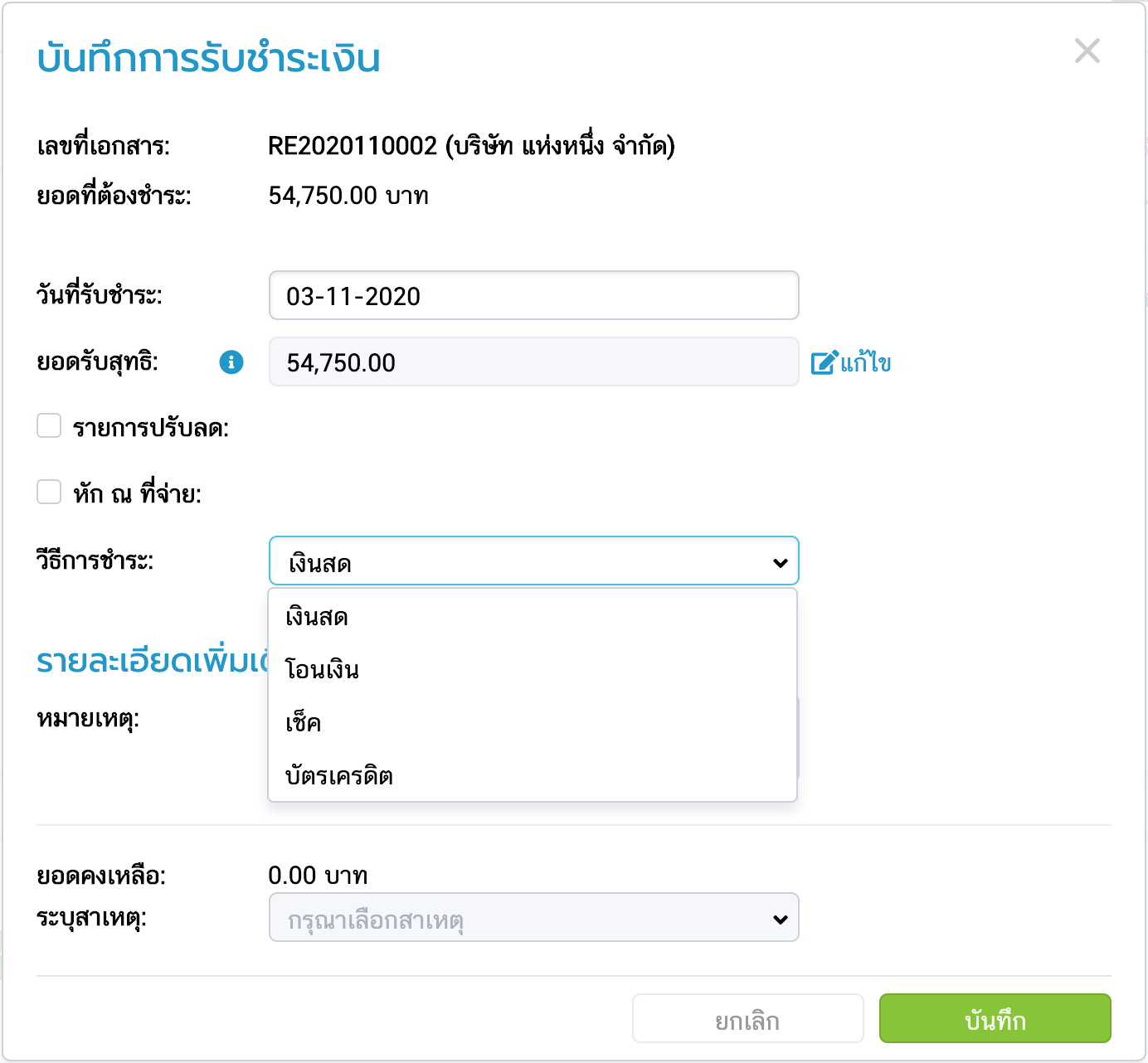
4.2.a Once completed, press the “Save” button to complete the sales process