SOP: Digital Contract Signing via DocuSeal
SOP: Digital Contract Signing via DocuSeal
System: sign.speakerbox.live
Access: start.speakerbox.live → eSign bookmark
Owner: Operations Team (Aaron, Kop)
Last Updated: 11 February 2025
COMPLETE WORKFLOW
STEP 1: Access DocuSeal
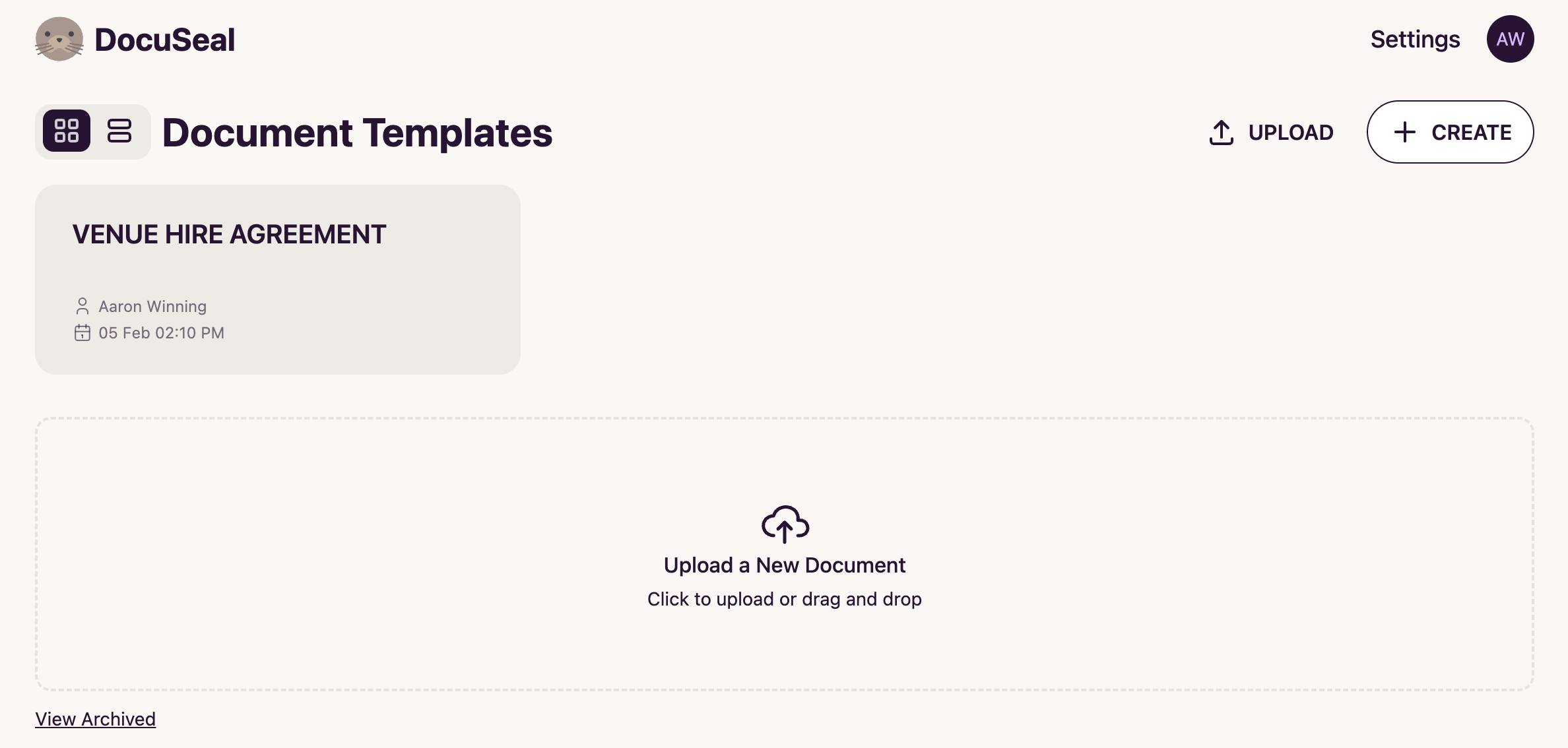
STEP 2: Clone Template
- Hover over "VENUE HIRE AGREEMENT" template card
- Click "Clone" button
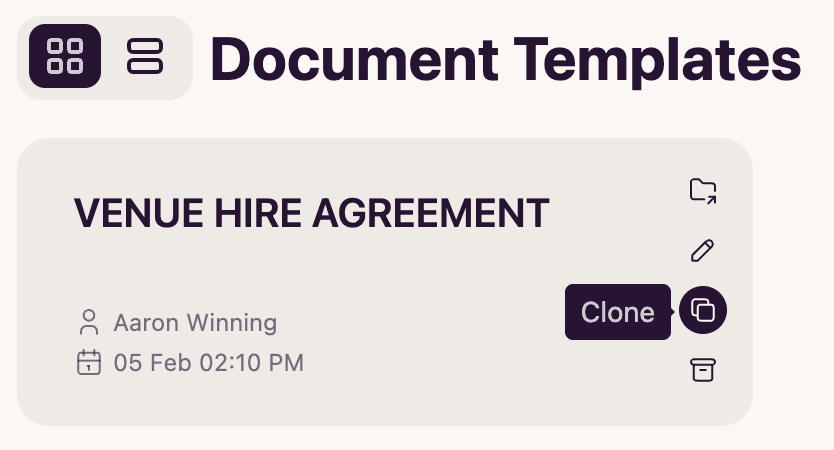
STEP 3: Name Document
- Replace "VENUE HIRE AGREEMENT (Clone)" with promoter's name
- Example: "VENUE HIRE AGREEMENT - SROAST ENTERTAINMENT"
- Leave folder as "Default" (or organize by month/event type)
- Click SUBMIT
Result: Document editor opens
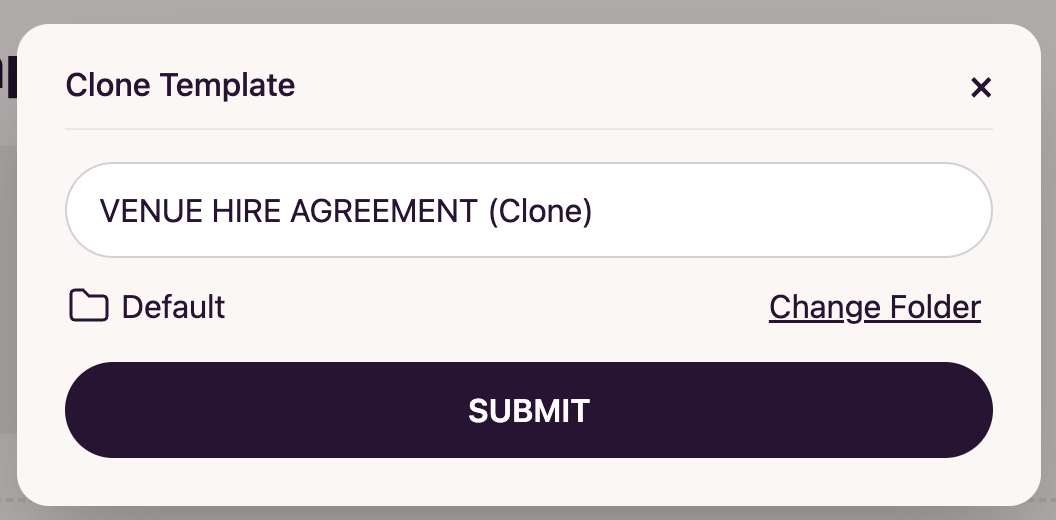
STEP 4: Add Recipients
- Click SIGN YOURSELF button (top left)
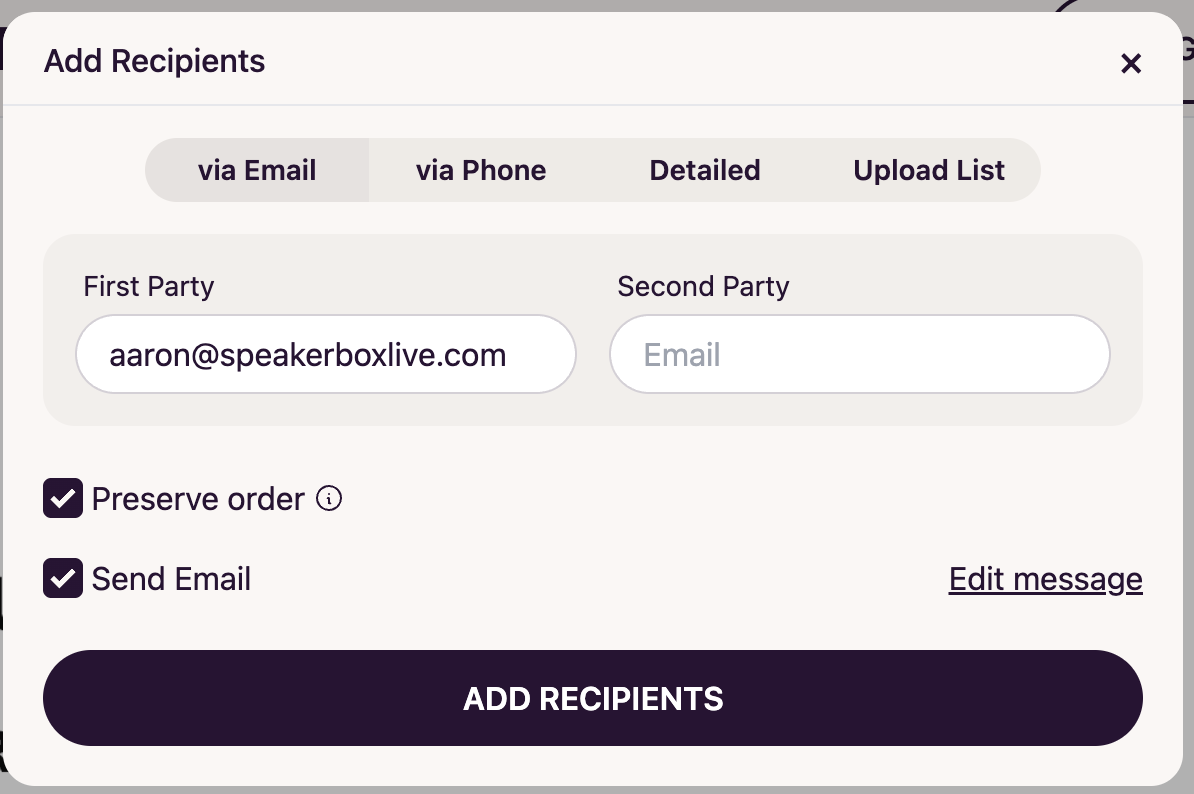
- "Add Recipients" dialog appears
Fill in:
- First Party: [Your email] - pre-filled based on active login
- Example: aaron@speakerboxlive.com or kop@speakerboxlive.com
- Second Party: Enter promoter's email address
Checkboxes:
- ☑ Preserve order ← CRITICAL - ensures venue signs before promoter
- ☑ Send Email ← Automatically sends to promoter after venue signs
Optional: Click "Edit message" to customize email text
- Click ADD RECIPIENTS
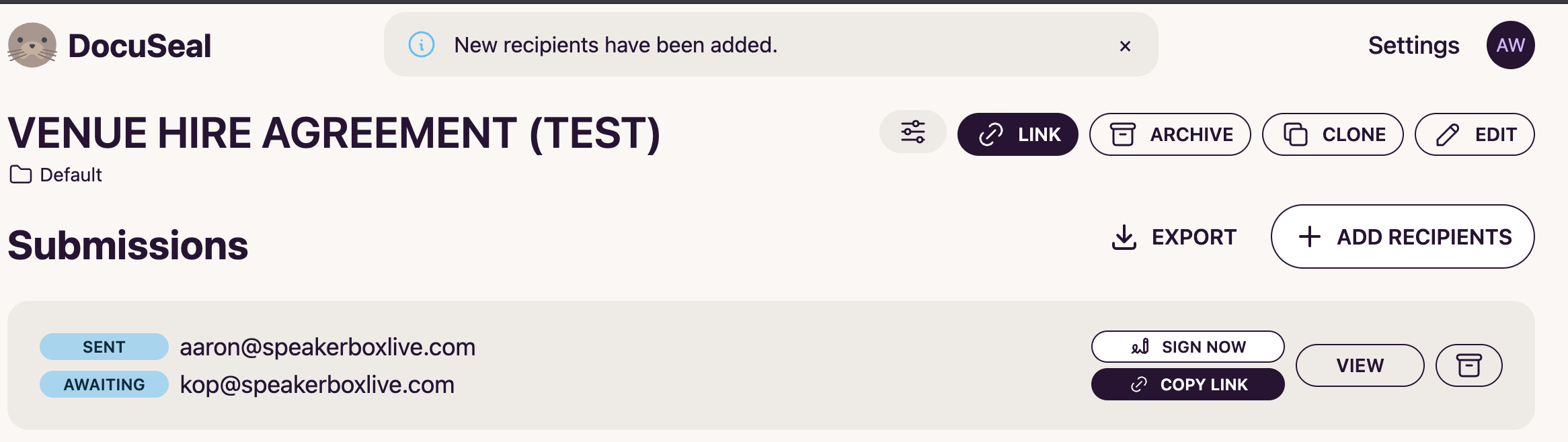
Result: Takes you to Submissions tracking page
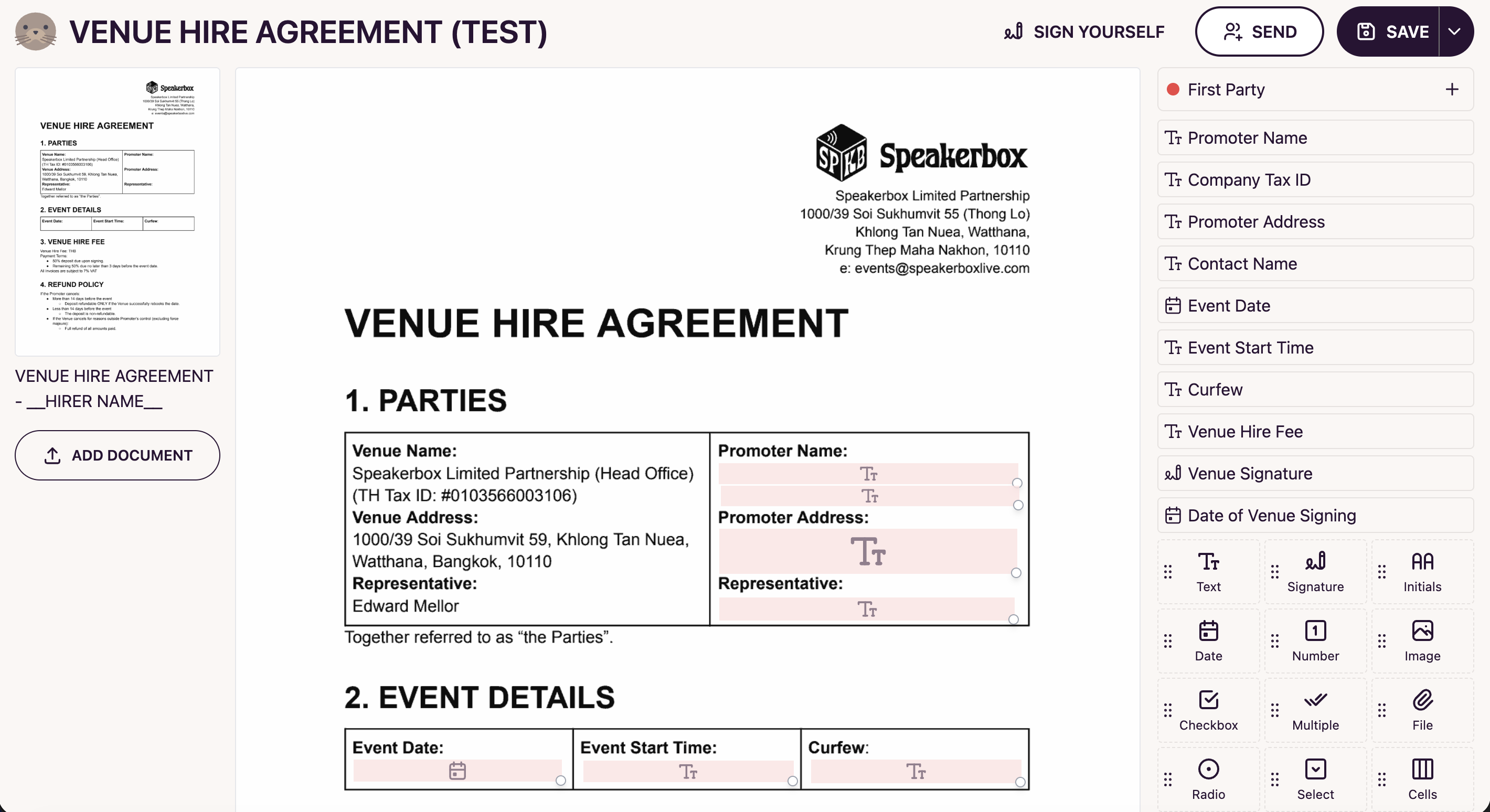
STEP 5: Complete Venue Signature
On Submissions page:
- Click SIGN NOW button
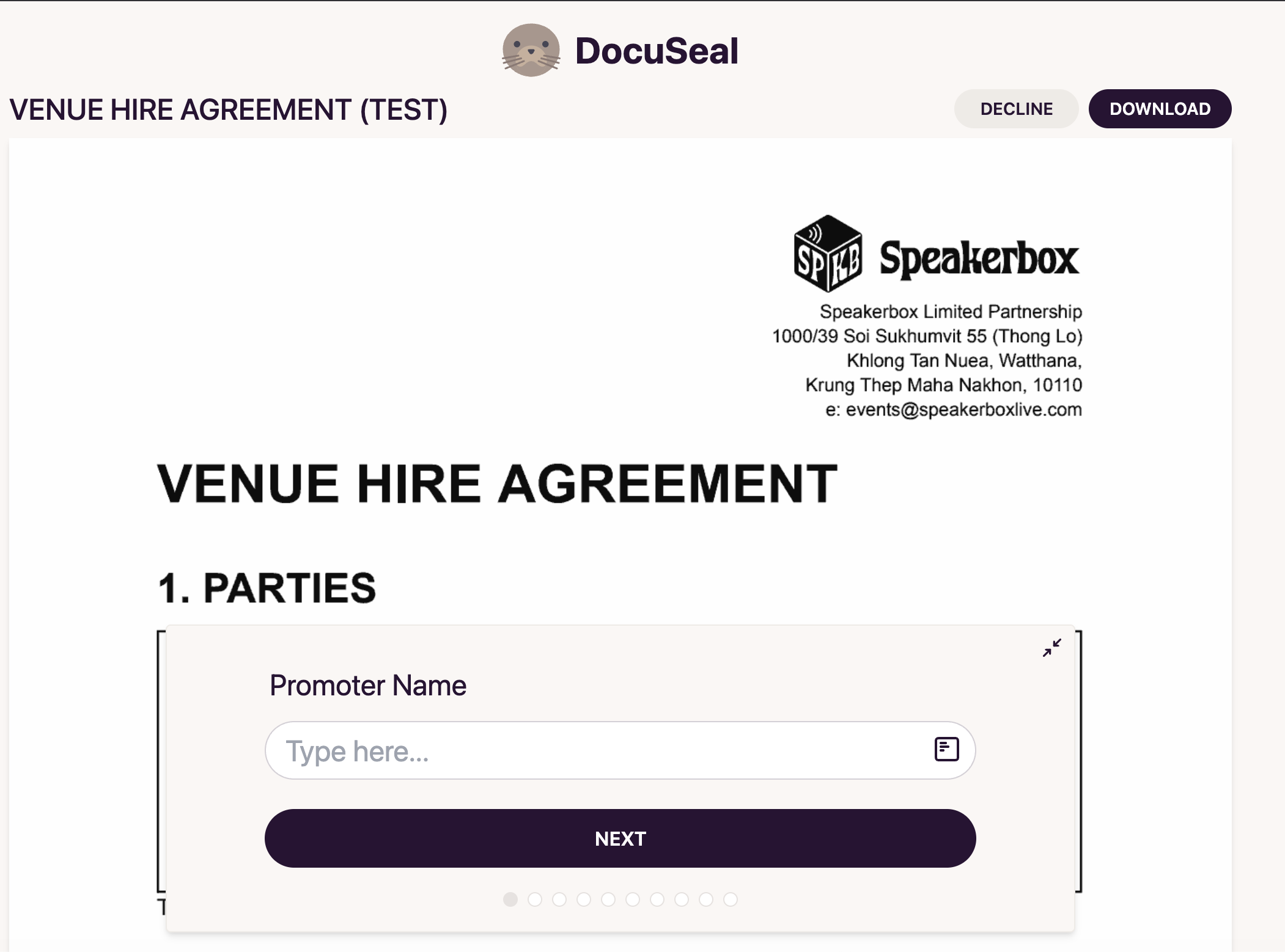
Multi-page form appears - fill in ALL fields:
Page 1 - Parties Information:
- Promoter Name
- Promoter Address
- Promoter Tax ID (Company Registration Number)
- Promoter Contact Name
Page 2 - Event Details:
- Event Date
- Event Start Time
- Curfew (hard stop time)
Page 3 - Financial Terms:
- Venue Hire Fee (total amount in THB)
Page 4 - Venue Signature:
- Venue Signature (draw, type, or upload)
- Date of Venue Signing
- After completing all fields, click SUBMIT
Result: Returns to Submissions tracking page
STEP 6: Contract Automatically Sent to Promoter ✅
Submissions page now shows:
- SENT ✅ [your email] (venue signed)
- AWAITING ⏳ [promoter email] (waiting for signature)
Automatic actions:
- ✅ Promoter receives email with signing link
- ✅ Email sent because "Preserve order" was ticked
- ⏳ Reminder emails sent automatically (check if DocuSeal Pro needed for custom intervals)
Venue-side process complete - now waiting for promoter
STEP 7: Promoter Signs Contract
What the promoter sees:
- Receives email from DocuSeal with subject: "Venue Hire Agreement requires your signature"
- Clicks link in email
- Sees Speakerbox-branded signing page
- Reviews pre-filled information (venue already filled this in)
- Adds their signature and date
- Clicks SUBMIT
STEP 8: Contract Completion Notification
When promoter signs, automatic actions occur:
Notifications:
- ✅ Email sent to venue signer (person who created the contract)
- ✅ Email sent to promoter
- ✅ Both emails contain signed PDF attachment
System storage:
- ✅ Contract saved in DocuSeal system
- ✅ Accessible via Submissions page
Submission status updates:
- SENT ✅ [venue email]
- SENT ✅ [promoter email]
- All parties signed = COMPLETED
STEP 9: File Completed Contract (MANUAL)
Action required - venue staff:
- Download signed contract PDF from DocuSeal
- Via email attachment, OR
- Click VIEW on Submissions page → Download PDF
- Save to Google Drive in correct location:
Google Drive > SB3 > Bookings > [Promoter Name Folder]
- Update NoCoDB:
- Event record → Mark contract as "Signed"
- Add link to Google Drive location
- Update status to "Confirmed"
Process complete ✅
CHASING UNSIGNED CONTRACTS
If promoter hasn't signed within 3 days:
Option 1: Send reminder via WhatsApp/LINE
- Go to Submissions page
- Find the pending contract
- Click COPY LINK button
- Send link via WhatsApp/LINE with message:
Hi [Promoter Name],
Just following up on the venue hire agreement for [Event Date].
You can sign it here: [paste link]
Let me know if you have any questions!
Option 2: Resend email
Option 3: Check if automatic reminders working
- DocuSeal may send automatic reminders
- Confirm if Pro version needed for custom reminder schedules
MONITORING & TRACKING
Where to check contract status:
Submissions Page (main tracking location):
- SENT ✅ = Signed and completed
- AWAITING ⏳ = Waiting for signature
- VIEWED 👁️ = Promoter opened link but didn't sign yet
Actions available:
- SIGN NOW - Complete your signature (if you're pending signer)
- COPY LINK - Get direct URL to share via messaging apps
- VIEW - Preview/download contract
- DELETE - Remove submission (use with caution)
- EXPORT - Download signed PDF
DECISION TREE
ScenarioAction
Standard venue hire booking
Use existing template, clone and send
Custom terms needed
Edit cloned template fields before signing
Urgent - need signature today
Send DocuSeal link + WhatsApp follow-up
Promoter says link doesn't work
Click COPY LINK, send fresh URL via WhatsApp
Wrong promoter email entered
Delete submission, start over with correct email
Need to change contract after sending
Cannot edit - must delete and create new
Promoter can't find email
Check spam folder OR use COPY LINK → WhatsApp
Contract taking >3 days to sign
Send WhatsApp reminder with COPY LINK
INTEGRATION WITH BOOKING WORKFLOW
Current NoCoDB Process:
Booking Confirmation Flow:
- Eddie confirms booking → Creates hold in NoCoDB
- [TRIGGER] Hold → Confirmed status change
- [NEW STEP] Kop/Aaron sends DocuSeal contract within 24 hours
- Promoter receives email, signs contract
- [ACTION REQUIRED] Save completed contract to Google Drive
- [ACTION REQUIRED] Update NoCoDB event record with contract status
Future EventFlow Integration:
When EventFlow is production-ready:
- Cue Created: "Send Venue Hire Agreement"
- Assigned to: Kop/Aaron
- Triggered by: Event status change to "Confirmed"
- Deadline: 24 hours after confirmation
- Auto-updates: When contract signed, cue marked complete
- Next cue triggers: "Collect Event Details" (production/bar requirements)
FOLDER ORGANIZATION IN DOCUSEAL
Recommended Structure:
Default folder: Quick/urgent contracts
Monthly folders:
- "2025-01 Contracts"
- "2025-02 Contracts"
- etc.
Event type folders:
- "Venue Hire Agreements"
- "Artist Agreements" (future)
- "Sponsorship Agreements" (future)
To create folders:
- Settings → Folders → Create New
- Move completed contracts via "Change Folder" option
GOOGLE DRIVE FILING STRUCTURE
Required path:
Google Drive
└── SB3
└── Bookings
└── [Promoter Name]
└── VENUE_HIRE_AGREEMENT_[Date].pdf
Example:
Google Drive
└── SB3
└── Bookings
└── SROAST ENTERTAINMENT
└── VENUE_HIRE_AGREEMENT_2025-01-25.pdf
If promoter folder doesn't exist:
- Create new folder with exact promoter name
- Save contract inside
- Add event runsheet, riders, etc. to same folder later
ACCESS & PERMISSIONS
Who can send contracts:
- Aaron (admin access)
- Kop (admin access)
- Eddie (to be configured - send only)
Promoter access:
- No login required
- Receives unique signing link via email
- Link valid for 30 days (default)
- Can sign from any device (mobile-friendly)
Security:
- Each contract link is unique and expires
- Cannot edit after sending
- Audit trail of all signatures and timestamps
- IP addresses logged for each signature
COMMON ISSUES & SOLUTIONS
ProblemSolution
"I forgot to add promoter email"
Delete submission, start over - cannot add recipients after initiating signing
"Promoter says link expired"
Generate new contract, send fresh link
"I made a mistake in the contract details"
Cannot edit after sending - delete and recreate
"Promoter signed but I didn't get notification"
Check spam folder, or go to Submissions page to verify status
"Contract stuck at AWAITING for 1 week"
Contact promoter via WhatsApp with COPY LINK
"Need to cancel contract"
Click DELETE on Submissions page (use caution - irreversible)
"Promoter needs to sign offline"
Not possible with DocuSeal - use paper contract if required
EMAIL TEMPLATE (OPTIONAL CUSTOMIZATION)
Default email sent to promoter:
Subject: Venue Hire Agreement requires your signature
Dear [Promoter Name],
Please review and sign the venue hire agreement for your event
at Speakerbox.
Click here to sign: [Link]
This document has been prepared by [Your Name] from Speakerbox.
Best regards,
Speakerbox Team
To customize:
- Click "Edit message" in Add Recipients dialog
- Add event-specific details
- Include event date/time
- Add contact information for questions
CHECKLIST: Before Sending Contract
- Verified promoter email address is correct
- Event date, time, and curfew are accurate
- Venue hire fee amount is correct
- Promoter name and company details are accurate
- "Preserve order" is ticked (venue signs first)
- "Send Email" is ticked (auto-send to promoter)
POST-SIGNING CHECKLIST
- Signed contract downloaded from DocuSeal
- Contract saved to Google Drive > SB3 > Bookings > [Promoter Folder]
- NoCoDB event record updated with contract status
- Event status changed to "Confirmed"
- Next steps triggered (production/bar requirements collection)
NOTES & REMINDERS
Important:
- Pre-fill link is based on active user login - whoever sends the contract is listed as "First Party"
- Cannot edit contract fields after clicking "Add Recipients"
- Automatic reminder functionality may require DocuSeal Pro (verify with current subscription)
- Keep contracts organized by moving to appropriate folders monthly
Future improvements:
- Integration with EventFlow for automated workflow
- Automatic NoCoDB updates when contract signed
- Webhook triggers for contract completion notifications
- Template variations for different event types (premium tier, multi-day, etc.)
See also:
- SOP: Event Data Request (production/bar requirements from promoter)
- SOP: NoCoDB Event Management
- SOP: Google Drive File Organization
- SOP: EventFlow Workflow (when production-ready)
Document version: 1.0
Created: 11 February 2025
Last reviewed: 11 February 2025
Next review: March 2025