Quotation Process
Issue a quotation easily with FlowAccount
in the sales process Whether it is a product or service It starts with sending a quotation. You can issue a quotation in the FlowAccount accounting program, which helps design ready-made forms, by going to the sales document function. Then enter customer information Product or service details and price receive a quotation. Without having to type and create the form yourself in Excel As for the name and address of your own company, You can set it to default information at Blue menu bar on the left Then select the application and go to My Company
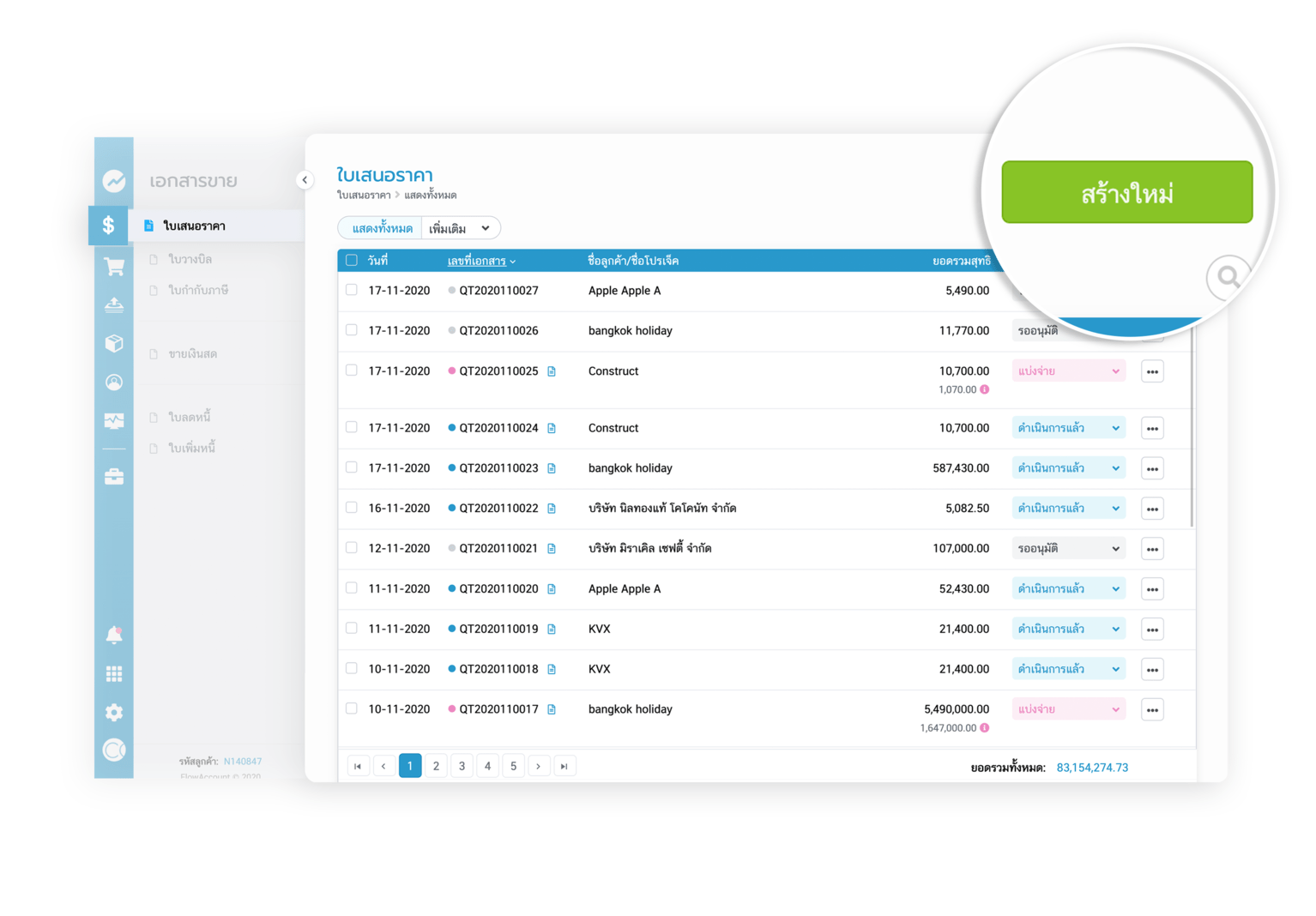
1.1.a Enter the "Quotation" menu, press the “button, create a new ”. green in the upper right corner to create a document
2.2.a Enter details in the fields specified by the accounting system, such as customer name, address, tax identification number. (You can choose what number of documents are issued in the name of the office or branch.) Product information, product prices, etc. for customer information. If it has already been filled in The system will automatically display a list of that customer and address
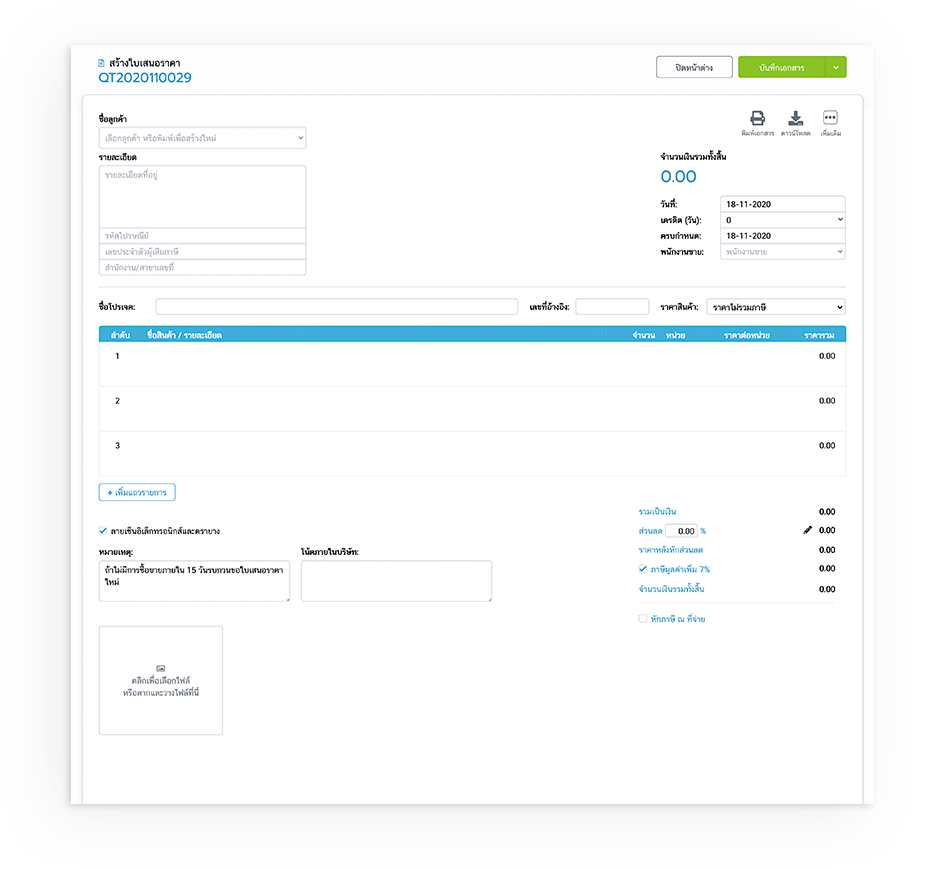
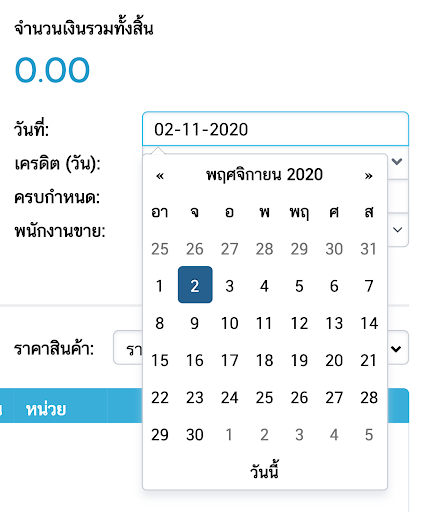
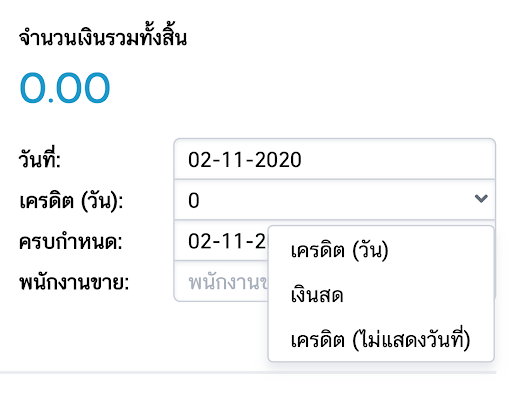
3.2.a The date of issue of the document can be selected from the calendar (picture on the left) and the term is credited with indicating the date or not showing the date (picture on the right)
4.2.a Fill in additional details to create a quotation for any customer. In what project?
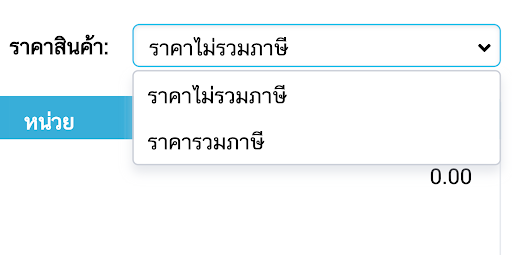
5.2.a Choose the price of the product whether it includes taxes or does not include taxes
6.2.a Fill in the details of the products to be offered. along with details of quantity, price per unit (can add rows of items In the case of having multiple products to bid on)

7.2.a The price summary section shows the total amount. and can choose to specify discounts for customers Both in the form of amounts and percentages
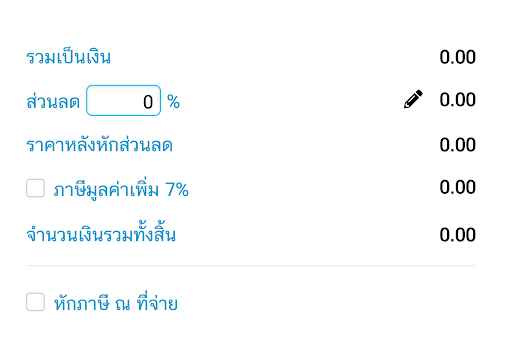
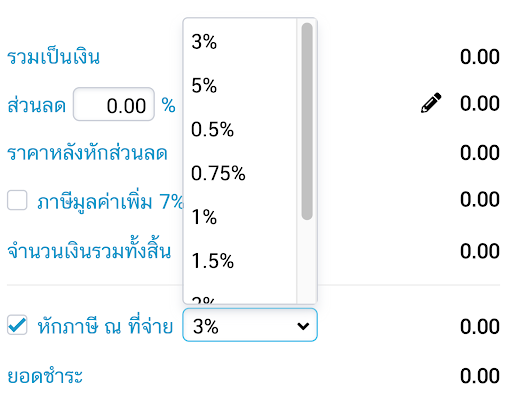
8.1 If the product is a type of service, such as hiring to design a system, hiring to make things, or providing various services. There must be a withholding tax deduction. You can choose the tax rate for the deduction as shown in the picture, such as 2%, 3%, etc
After saving the document You will be able to choose to print documents or download documents. After creating the document, press Close Window. The system will display all the quotations that have already been created and show the status that is currently being processed. The status is Waiting for Action

No comments to display
No comments to display